This guide brings together the launch process for all Arcane software from the ForgeCheats catalog in one place - the loader is the same across all Arcane products, regardless of the game. ARCANE RADAR is covered separately, since it works on a different principle, without an in-game menu.
Games covered by Arcane software: Active Matter, Apex Legends, ARC Raiders, Ark: Survival Ascended, Arma Reforger, Battlefield 6, Conan Exiles, CS2, Dead by Daylight, DeadSide, Fortnite, GTA 5, Hell Let Loose, HumanitZ, Mistfall Hunter, Palworld, PUBG, Rust, Scum, Sea of Thieves, Squad, THE FINALS, The First Descendant, The Midnight Walkers, Unturned, War Tundra.
The download link for the loader of your specific product arrives in your ForgeCheats account immediately after payment - it is not, and cannot be, included in this article; access is only through the buyer's account.
Table of Contents
- Section A - System Preparation
- Section B - Overlay Setup for Menu Display
- Section C - Key Activation and Loader Launch
- Section D - Game-Specific Notes
- Section E - ARCANE RADAR
- Common Issues and Questions
Section A. System Preparation
Arcane software is demanding when it comes to system cleanliness - most support requests get resolved right at this step, before the loader is even launched for the first time.
Antivirus and Windows Defender
A detailed step-by-step guide with screenshots is already available in our article How to Disable Windows Defender and Antivirus Before Running a Cheat - there's no need to repeat it here. For Arcane specifically, also make sure to disable SmartScreen.
Conflicting Anti-Cheats
Through Control Panel → Programs and Features, completely remove FaceIt Anti-Cheat and Riot Vanguard if they are installed - their drivers run at kernel level and conflict with the Arcane loader, even if you don't plan to play games that use these anti-cheats.
BIOS Settings
Enter BIOS/UEFI and disable Intel Rapid Storage Technology. Without this, the loader may crash with errors as early as the launch stage.
Required Component
Install the Microsoft Visual C++ Redistributable - without it, the loader won't launch.
Before launching the loader for the first time, make sure to restart your computer - this is a requirement from the developer itself, not just us being cautious.
Section B. Overlay Setup for Menu Display
The Arcane software menu is rendered on top of the game through a game overlay - without it, the menu physically won't appear, even if the injection succeeded. Choose one of the options below depending on your graphics card; there's no need to use two overlays at once.
Option 1 - Discord (recommended)
- Download Discord from the official website and sign in to your account or create a new one.
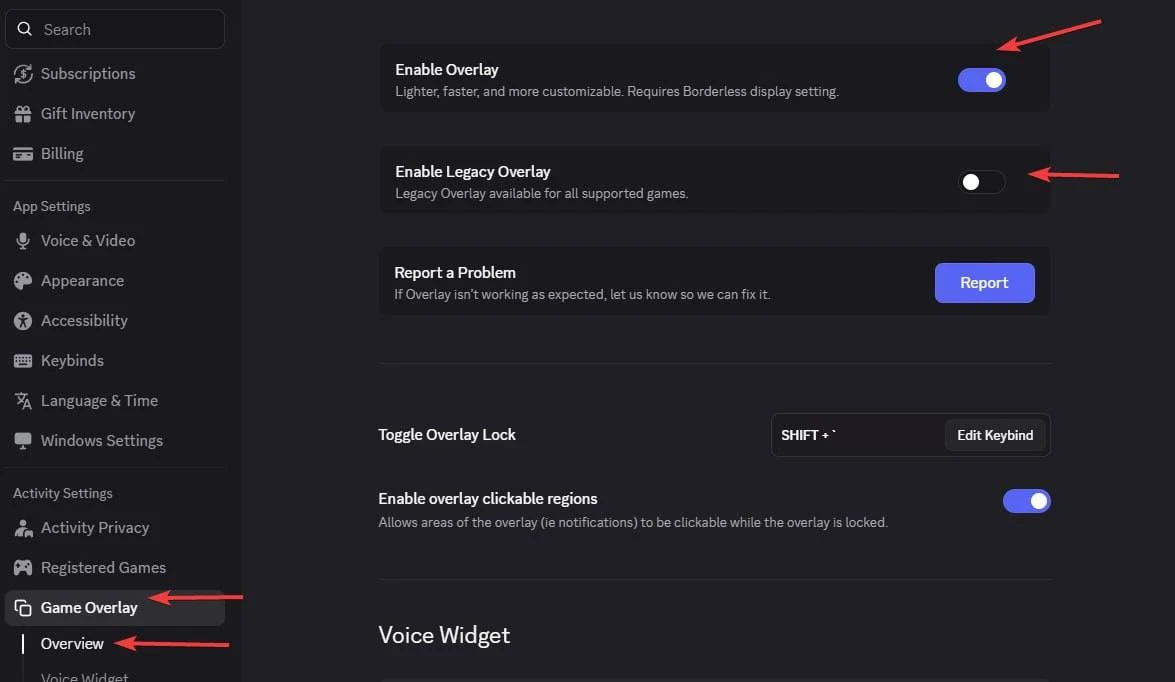
- In Discord settings, enable Enable Overlay and disable Enable Legacy Overlay.
- Enable Enable Hardware Acceleration in the Appearance → Advanced section.
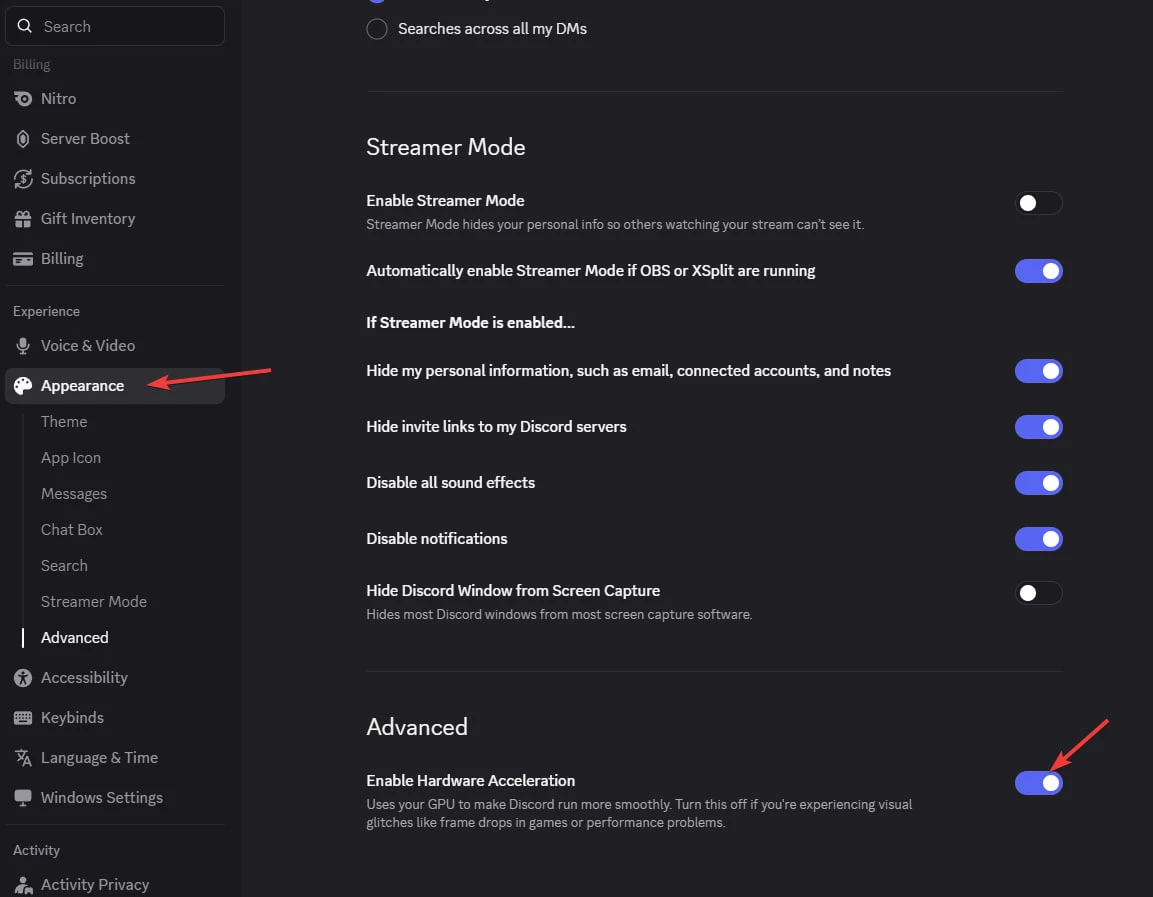
- Make sure the overlay isn't disabled for the specific game (game list is in Discord settings).
Option 2 - Medal TV (if Discord doesn't work for you)
- Download Medal from the official website, launch it, and sign up or log in.
- In the settings, make sure the overlay is enabled (it's active by default).
Option 3 - Nvidia App (for Nvidia graphics cards)
- Install Nvidia App and log in.
- Install the latest version of the graphics driver.
- Enable the Nvidia overlay in the app settings.
Option 4 - AMD Adrenalin (for AMD graphics cards)
- Install AMD Software: Adrenalin Edition - the PRO version won't work.
- Install the latest version of the graphics driver.
- Enable the game overlay in the settings, and on the Performance tab enable performance display.
Option 5 - SteelSeries GG (alternative for non-Nvidia cards)
- Download SteelSeries GG.
- In SteelSeries settings: Settings → Moments → Capture and Sound, turn off "Allow Moments to capture while gaming".
- In the Overlay and Notifications section, turn off "Display game overlays", enable Sonar in General Settings, and on the SONAR tab assign a hotkey for the Sonar overlay (for example, Master Volume Up).
- Press this key before every loader launch.
A more detailed overlay setup video is available if anything is still unclear after the text instructions.
Section C. Key Activation and Loader Launch
- Download the loader from the link in your ForgeCheats account and save it to a separate folder.
- Run the loader file as administrator.
- After updating, the loader will close - run the updated file again.
- Enter the activation key and press Enter. In the CMD loader, you can paste the copied key with a right mouse click.
- If the loader asks about "clean traces" and "hwid spoofer" - answer at your own discretion (these are optional features, not present in every version of the loader).
- After a successful load, the loader will close automatically.
- Launch the game and don't switch to other windows until the menu appears - this usually takes 1-2 minutes.
The menu is opened and closed with the Home or Insert key (there are exceptions for certain games - see Section D). To fully unload the software, use the End key.
Section D. Game-Specific Notes
CS2 - Visible Check Setup
For CS2 only: enabling map-based visibility checking (Visible Check) requires a separate setup.
- Download the maps archive - it's in your ForgeCheats account alongside the loader.
- Extract the Maps folder from the archive to
C:\ProgramData\TdgDsOv9~PCu\CS2. If these folders don't exist, create them manually. - In the software menu, open MISC → Visible Check Type and select Map Ray Tracer.
- Then in MISC → Map Selector, select the map you're currently playing on.
Unturned - Different Menu Key
In Unturned, the menu is opened with the Delete key, not Home/Insert.
PUBG - Menu Only in Match
In PUBG, the menu is only visible during an actual match - it doesn't display in the lobby, and that's normal. Menu navigation in PUBG uses the keyboard arrow keys.
Section E. ARCANE RADAR
ARCANE RADAR is available for PUBG and ARC Raiders. It works differently from the main software: instead of an in-game menu, it's a browser-based map that streams player and loot position data.
- Download the radar loader from the link in your ForgeCheats account.
- Run the file as administrator.
- Wait for the loader to update, then run the updated file.
- Enter the activation key and press Enter.
- The loader will ask you to restart your computer - do so.
- After restarting, launch the loader again and re-enter the key. On first use, up to three restarts may be needed - this is normal.
- After a successful load, the loader will close on its own.
- Launch the game - the radar page will open in your browser automatically.
If the radar page didn't open on its own, restart the loader and repeat the injection. If you accidentally closed the radar tab, return to the game and press Insert - the link will open again automatically.
If you want to share the radar link with another viewer, copy it in full, including the session token (the part of the address that looks like
session_id=...). Without the token, the link won't open.
For PUBG Radar, adjustable no-recoil is also available separately - the F6 key toggles the feature on and off, and a distinct sound confirms it triggered.
Common Issues and Questions
Error: "Please make sure PIN is not set in Windows sign-in options and manually disable Hyper-V"
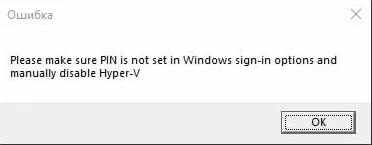
Completely disable PIN sign-in in Windows sign-in options - this is described in detail in Lenovo's guide to removing the sign-in password. Then temporarily disable CPU virtualization in the BIOS. After that, launch PowerShell as administrator and run the commands below (you can copy them all at once, no need to paste line by line):
takeown /F "C:\Windows\System32\hvix64.exe"
icacls "C:\Windows\System32\hvix64.exe" /grant *$(([System.Security.Principal.WindowsIdentity]::GetCurrent()).User.Value):F
takeown /F "C:\Windows\System32\hvax64.exe"
icacls "C:\Windows\System32\hvax64.exe" /grant *$(([System.Security.Principal.WindowsIdentity]::GetCurrent()).User.Value):F
del "C:\Windows\System32\hvix64.exe"
del "C:\Windows\System32\hvax64.exe"
Error: "Failed to map memory"
If you have less than 12 GB of RAM, unfortunately this is a hardware limitation - contact the seller for a refund. If you have enough RAM, disable all startup programs and restart your PC. If that doesn't help, download Autoruns and disable all programs at the path below.

Missing Library Error (More Common on AMD)
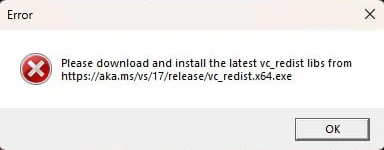
Install the latest version of the libraries using the link in the error message itself. If that doesn't help and you have an AMD graphics card:
- In Task Manager, end all AMD processes (AMD Radeon, AMDSrv, AMDOW, CPUMetrics, and others).
- Go to the AMD Software: Adrenalin Edition installation folder - by default this is
C:\Program Files\AMD\CNext\CNext. - Download and extract the Libs.rar library archive, then copy and replace all DLL files in that folder.
- If the files won't copy and you get a "file is open in another program" error, that means AMD processes are still running - check Task Manager again.
- After replacing the files, restart AMD Software and enable performance metrics display.
Loader Closes Without an Error
Install the Microsoft Visual C++ Redistributable - this is the most common cause.
Menu Is Visible in Game But Not Clickable
Launch Steam without administrator rights and disable all third-party overlays except Nvidia or AMD (depending on your graphics card).
Menu Disappears or Visual Features Stop Working
If the game recently received a patch, wait for a software update. Verify the integrity of the game files, or better yet, reinstall the game completely. If that doesn't help, contact support chat.
Menu Not Clickable or Not Opening on First Launch
Launch Steam without administrator rights. If you're playing through EA App, disable the EA App overlay in the app settings.
"AES instruction set is not supported"
This means the processor doesn't support the AES instruction set - this can't be fixed in software, contact us for a refund.
Windows Shows "Please enable Intel VT-X" or "Please enable AMD-V"
Enter the BIOS and enable "Intel Virtualization Technology" / "Intel VT-X" (for Intel processors) or "AMD-V" / "SVM Mode" (for AMD processors).
"Please disable secure boot in the BIOS"
Enter the BIOS and disable Secure Boot.
"Unsupported firmware"
Convert the disk with the operating system to GPT format - you can do this with the built-in Windows utility mbr2gpt or any other disk management program.
"Secure boot keys are incorrect and need to be enrolled"
Enter the BIOS, enable Secure Boot, and save the settings. You can verify everything turned on correctly with the Confirm-SecureBootUEFI command in PowerShell - if it returns True, you can restart and re-enter the BIOS to turn Secure Boot back off.
"VMX/SVM is not supported"
Open Control Panel → Programs and Features → Turn Windows features on or off and make sure "Virtual Machine Platform" and Hyper-V are disabled. If that doesn't help, open cmd as administrator and run the command bcdedit /set hypervisorlaunchtype off, then restart your PC.
Incorrect HWID
Open cmd as administrator and run the following commands one at a time:
wmic diskdrive get Caption, SerialNumber
wmic baseboard get SerialNumber
If either command fails, something is wrong at the system level on your computer - try reinstalling Windows and check whether the problem persists.
Computer Blue-Screened (BSOD) While Using the Software
Report it to ForgeCheats support on Discord - we'll pass the details on to the developer for a fix.
Account Got Banned
Contact ForgeCheats support on Discord - we'll look into it and pass the details on to the developer.
Other Loader-Caused Errors
Take a screenshot of the error and send it to support on the website (icon in the bottom-right corner). Also download AnyDesk and send the connection details to support chat as well - this way the developer can look at the issue directly.