How to disable Windows protection for a cheat so the loader doesn't get deleted on download: this is the single most common question our support gets. Before you run software from our catalog for the first time, you need to prep the system: turn off the built-in Windows protection, deactivate Microsoft Defender and remove any third-party antiviruses. Below is a step-by-step guide with screenshots across ten steps.
The ForgeCheats team built this guide from real tickets: roughly nine out of ten complaints like "the cheat won't launch" or "the file vanished after download" come down to an antivirus, not the software itself. We tested this on Windows 10 and Windows 11 in 2026. Do every step in order and all the way through: a half-finished setup gets you nowhere, Defender restores its protection within a couple of minutes and blocks the loader again.
Warning: these steps strip your system of its standard protection. Do them on a gaming PC, not on a work or banking machine. Download loaders only from your personal account on forgecheats.com. Once you're done playing, you can turn the protection back on, more on that at the end of the guide.
What you'll be doing
Order matters: first we change Windows' own settings, then we remove third-party antiviruses, and only at the very end do we kill Defender with DControl. Here's the full route:
- Turn off User Account Control (UAC)
- Disable Virus & threat protection
- Turn off the firewall
- Turn off Reputation-based protection (SmartScreen)
- Disable Exploit protection
- Turn off core isolation
- Remove third-party antiviruses
- Disable Defender with DControl
- Install drivers and libraries
- Sync the time
Step 1. Turn off User Account Control (UAC)
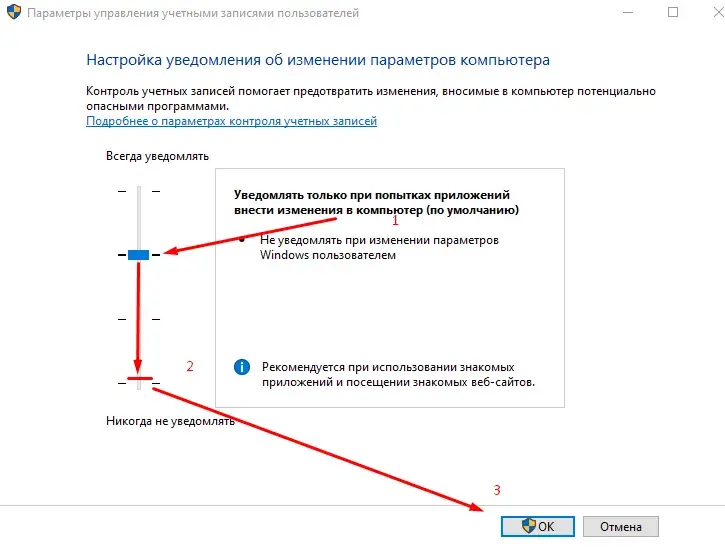
UAC is those "Do you want to allow this app to make changes" windows. They stop the loader from starting with the rights it needs. In the search box next to the Start button, type UAC and open Change User Account Control settings.
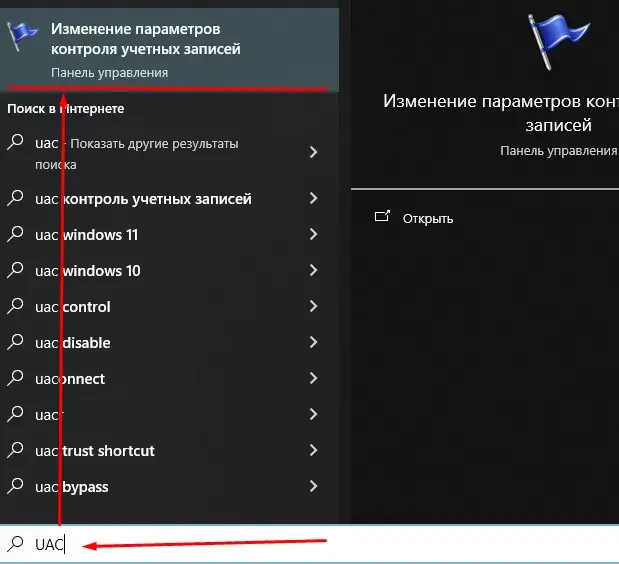
In the window that opens, drag the slider all the way down to Never notify and click OK. Confirm the system prompt.
Step 2. Disable Virus & threat protection
This is the core of Microsoft Defender. Open Settings, then Update & Security, then Windows Security and Virus & threat protection. Go into Manage settings and switch every toggle to Off:
- Real-time protection
- Cloud-delivered protection
- Automatic sample submission
- Tamper Protection
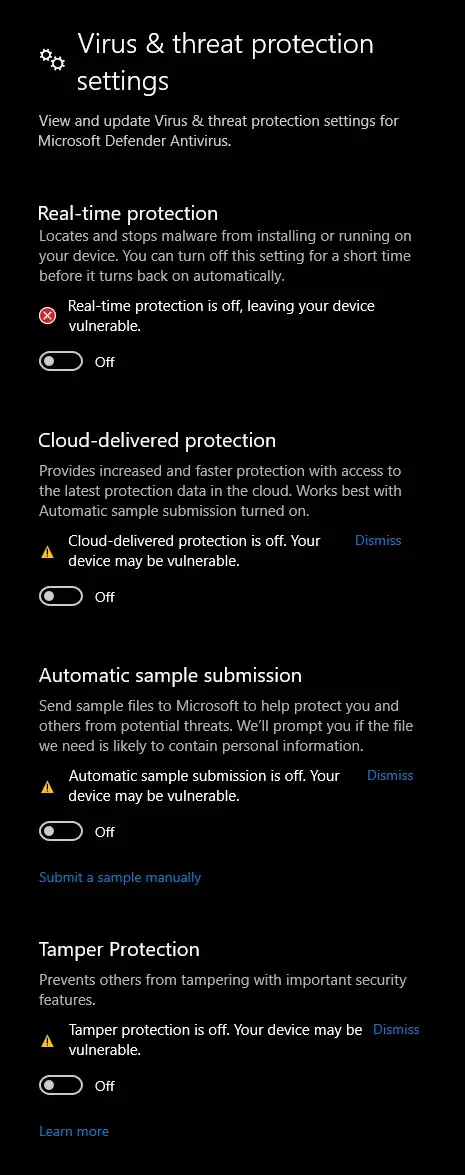
Turn off Tamper Protection first. While it is on, Defender switches the other toggles back on by itself.
Step 3. Turn off the firewall
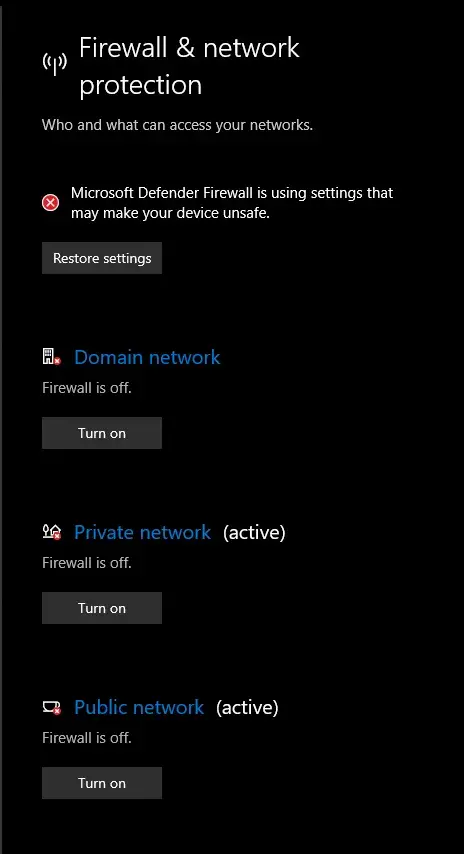
The firewall can cut off the loader's connection to the license server. In Windows Security, open Firewall & network protection and turn off protection for all three profiles: Domain network, Private network and Public network.
Step 4. Turn off Reputation-based protection
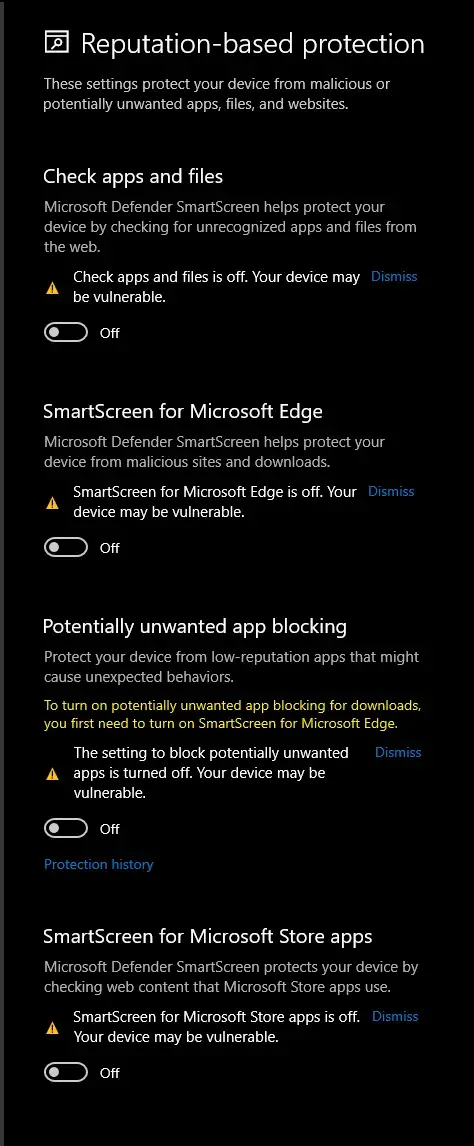
SmartScreen blocks anything "unknown", and the loader is exactly that: new and without a digital reputation. The path: App & browser control, then Reputation-based protection and Reputation-based protection settings. Turn off:
- Check apps and files
- SmartScreen for Microsoft Edge
- Potentially unwanted app blocking
- SmartScreen for Microsoft Store apps
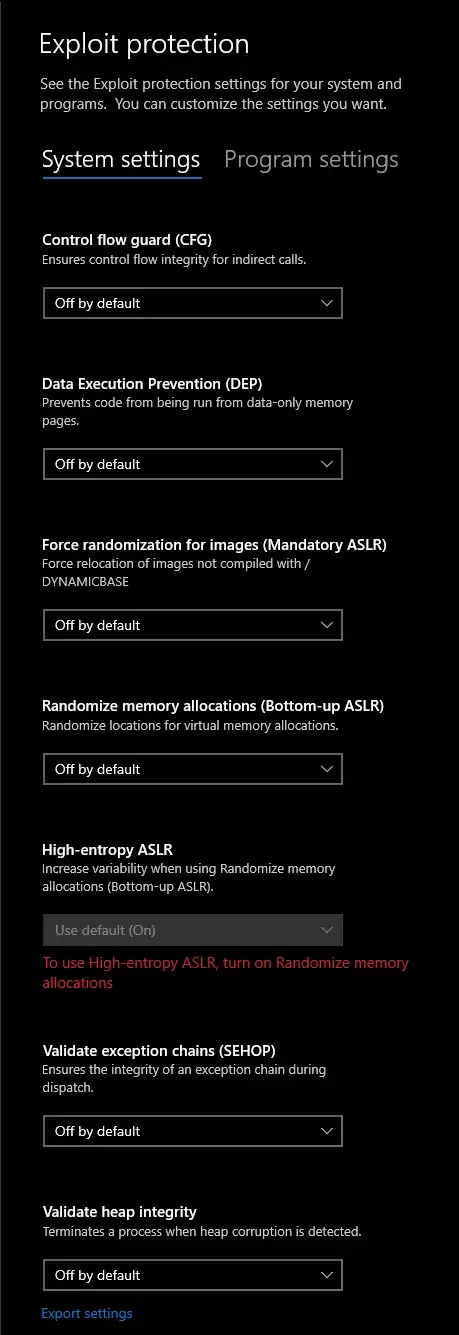
Step 5. Turn off Exploit protection
In that same App & browser control section, scroll down to Exploit protection and open its settings. On the System settings tab, make sure every item (CFG, DEP, ASLR, SEHOP and the rest) is set to Off by default.
Step 6. Turn off core isolation
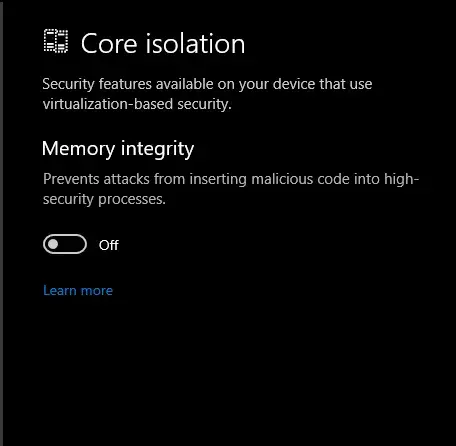
Memory integrity is a virtualization feature that can stop the cheat's driver from loading. Open Device security, then Core isolation details and switch Memory integrity to Off. Windows will ask for a restart, go ahead and accept.
Step 7. Remove third-party antiviruses
Any third-party antivirus needs to be fully uninstalled through Control Panel, not just switched off. When it is only disabled, it still cuts out the loader in 90% of cases. Every program like the following gets removed:
- FACEIT Anti-Cheat
- Riot Vanguard
- 360 Total Security
- ESET
- Dr.Web
- Malwarebytes
- Avira
- Avast
- McAfee
- any other antivirus you have installed
This list is not exhaustive: if you have any other security software installed, remove that too. Anti-cheats like Vanguard and FACEIT get uninstalled as well, they run at the driver level and clash with the loader.
Step 8. Disable Defender with DControl
This is the final touch, and you should only do it after all the steps above. DControl (Defender Control) shuts Defender down completely, and it won't turn itself back on before a restart.
- Download the archive: Download DControl (.rar)
- Unpack it and run the file as administrator
- Click the red "Disable Windows Defender" button
When the window header turns red and reads "Windows Defender is turned off", the protection is off.
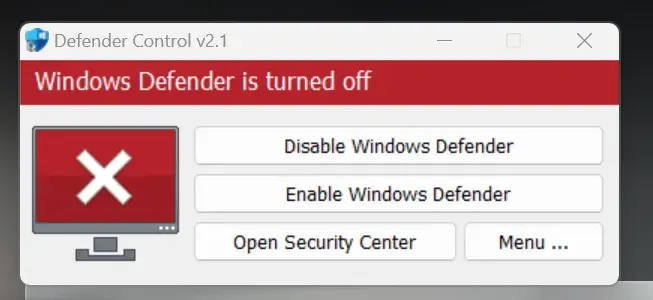
You can bring Defender back in the same window with the "Enable Windows Defender" button.
Step 9. Install drivers and libraries
So the loader does not crash with an error on startup, your system needs up-to-date components. You need two sets:
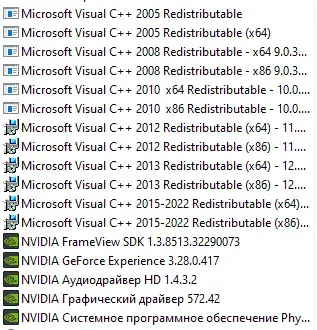
- Microsoft Visual C++ 2005-2022, all x86 and x64 versions. Install them from the official Microsoft site
- The latest Nvidia drivers (or AMD, if you have an AMD graphics card)
You can check what is already installed in Apps & features. The list should look roughly like this:
Step 10. Sync the time
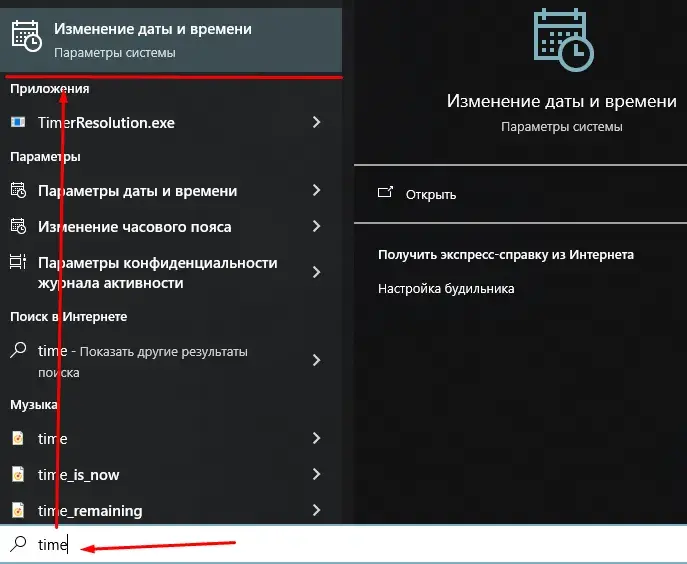
The loader checks the license against the clock, and a wrong time is a common cause of activation errors. In the search box next to the Start button, type time and open Change date and time.
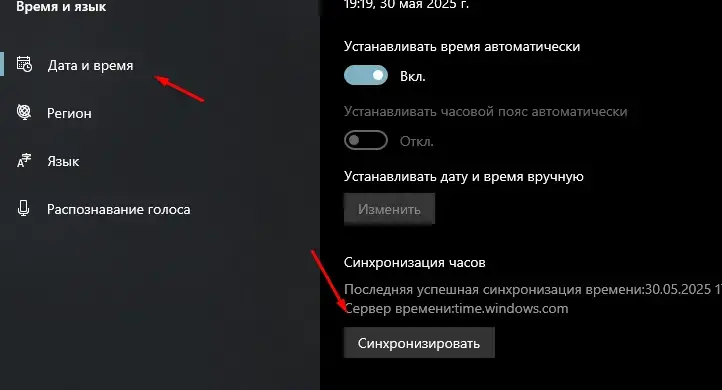
In Date & time, click Sync now under Synchronize your clock. Make sure the time zone is set correctly.
Done: what's next
Once all the steps are done, restart your computer so the UAC and core isolation changes take effect. Then download a fresh loader from your personal account and run it as administrator. If Defender managed to delete your old copy before the setup, download the file again after the protection is off.
If the loader still won't start after all the steps, don't struggle alone: message us on Telegram (2000+ members) or Discord (637+ members), and we'll help with your specific error.
Frequently asked questions
Why disable your antivirus for a cheat?
Cheats work directly with the game's memory and load in a non-standard way, so an antivirus flags them as suspicious through heuristics. It is a false positive: Defender deletes or blocks the file, and the software will not start. Removing the protection clears the false detection, and the loader itself does no harm to your system.
Is this safe for my computer?
While the protection is off, your system is more vulnerable, that is a fact. So keep the machine clean: download files only from your personal account on forgecheats.com, and do not open random links or attachments. Once you are done playing, put Defender back. On a dedicated gaming PC the risk is minimal.
The file vanished right after downloading, what do I do?
Most likely Defender sent it to quarantine. Restore the file from Protection history in Windows Security, then go through the guide again and be sure to kill Defender with DControl at the very end. Re-downloading only makes sense after the protection is off.
How do I turn Windows protection back on?
Run DControl and click "Enable Windows Defender", then in Windows Security switch the protection toggles back on and turn the firewall on. UAC and Memory integrity restore themselves after a restart. The whole rollback takes a couple of minutes.
Is disabling the antivirus enough, or do I have to remove it?
Third-party antiviruses like Avast, Dr.Web or Avira interfere with the loader in most cases even when they are disabled, so you uninstall them through Control Panel. You do not need to remove Defender: DControl shuts it down, and one button brings it back.