
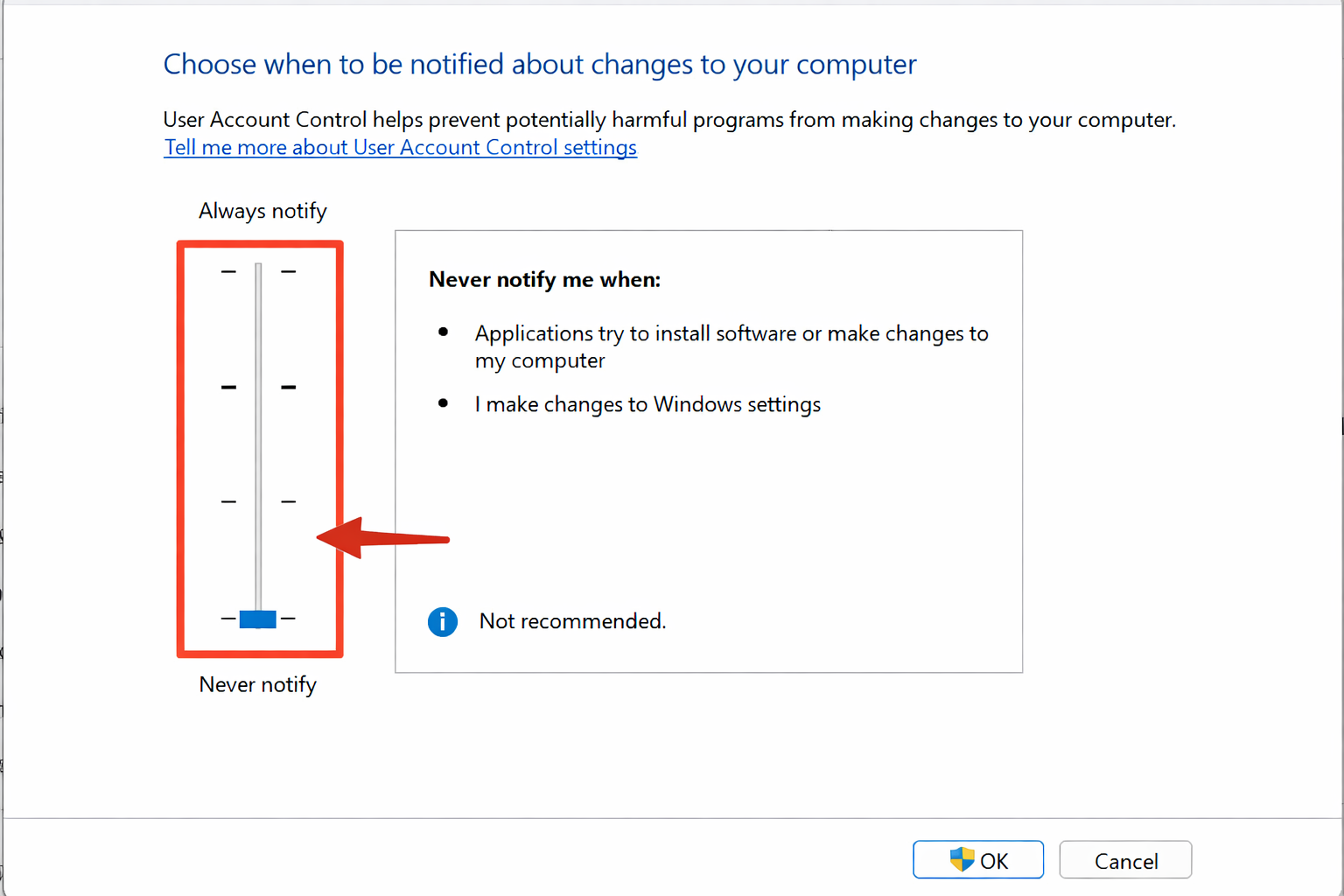
UAC, Windows User Account Control, is the pop-up that shows "Do you want to allow this app to make changes to your device," and in some cases it stops a cheat loader from getting the permissions it needs to work with the game's memory. Below are three working ways to disable UAC on Windows 10 and 11, plus one way to turn the protection back on once you need it again.
Disabling UAC lowers the system's protection against unauthorized changes. Do this on your gaming computer, not on a work or banking machine, and turn the protection back on once you're done playing.
What UAC Is and Why It Gets in the Way of a Cheat
UAC watches over any action that requires administrator rights: installing programs, changing system files, writing to protected folders. For each such action, Windows shows a pop-up asking for confirmation. Cheat loaders work directly with the game process's memory and system components, so they run with administrator rights, and an enabled UAC either blocks part of their actions or keeps interrupting the launch with confirmation prompts.
If the cheat won't start, hangs on launch, or quietly closes without an error, disabling UAC often fixes the problem faster than any other setup step. It's not the only reason launches fail, but it's one of the most common and the quickest to check: the fix takes no more than a couple of minutes, compared with removing third-party antivirus software or reconfiguring core isolation.
How to Disable UAC: Three Methods
Method 1. Through the Control Panel
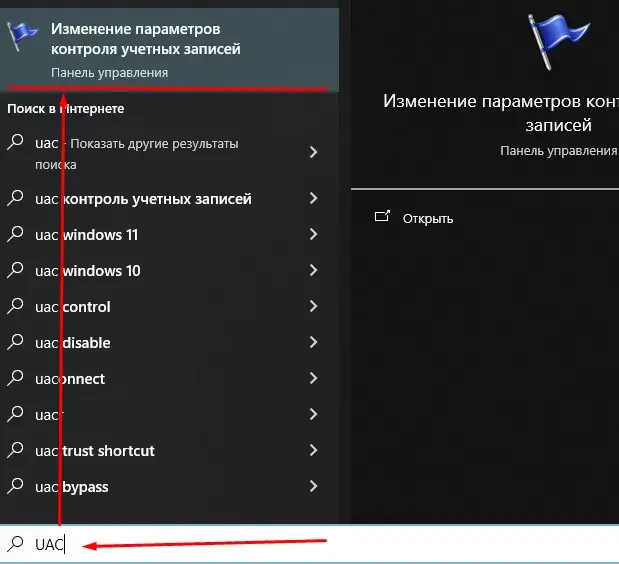
Press Win + R, type control, and press Enter to open the Control Panel. Go to the "User Accounts" section and open "Change User Account Control settings."
In the window that opens, move the slider all the way down to "Never notify" and click OK. Confirm the system prompt if it appears one last time before the setting is disabled.
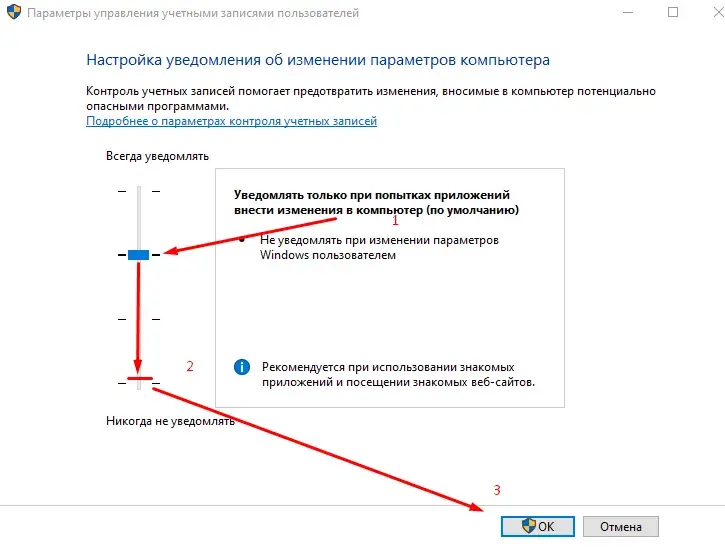
Restart the computer to make sure the changes take effect. This method is usually enough to run most loaders.
Method 2. Through the Registry Editor
Careless registry edits can break Windows. Change only the specified parameter, and create a system restore point beforehand if you don't already do that.
Press Win + R, type regedit, and press Enter. In the editor that opens, navigate to:
HKEY_LOCAL_MACHINE\SOFTWARE\Microsoft\Windows\CurrentVersion\Policies\SystemFind the EnableLUA value and change it to 0. If it's not in the list, create a new DWORD (32-bit) value with this name and the same value. Restart the system after making the change.
Method 3. Through the Command Prompt
Open the Start menu, type cmd, right-click "Command Prompt," and choose "Run as administrator." Run the command:
reg.exe ADD HKEY_LOCAL_MACHINE\SOFTWARE\Microsoft\Windows\CurrentVersion\Policies\System /v EnableLUA /t REG_DWORD /d 0 /fThis command does the same thing as editing through the Registry Editor, but in one step, without manually searching for the value. Restart the computer after running it.
How to Turn UAC Back On
When you need the protection again, for example when working with work documents or banking on the same computer, turn UAC back on using one of two methods:
- Open the Control Panel the same way as in Method 1 and move the slider back up to the original notification level
- Run this command in Command Prompt as administrator to set the value back to one:
reg.exe ADD HKEY_LOCAL_MACHINE\SOFTWARE\Microsoft\Windows\CurrentVersion\Policies\System /v EnableLUA /t REG_DWORD /d 1 /fAfter either option, the system will ask to restart. Agree to it so UAC takes effect right away, instead of after the next time you shut down the computer.
If the cheat still won't launch after disabling UAC, the problem is most likely your antivirus or Windows Defender. Check the full guide to disabling Windows protection for a cheat, which covers every step in order, from UAC to removing third-party antivirus software.
Frequently Asked Questions About Disabling UAC
Do I Really Need to Disable UAC to Run a Cheat?
Not always, some loaders run fine even with UAC enabled. But if the software hangs on launch, quietly closes, or throws an access error, disabling UAC is one of the first steps worth trying.
Which Method of Disabling UAC Is Most Reliable?
All three methods change the same system setting, the only difference is the interface. The Control Panel is simpler for beginners, while the Registry Editor and Command Prompt are more convenient if you need to repeat the setup on several computers.
Is It Safe to Keep UAC Disabled All the Time?
On a dedicated gaming computer, the risk is minimal. On your main work PC or a laptop with personal data, it's better to turn UAC back on after your gaming session, especially if you install software from various sources.
The Cheat Still Won't Launch After Disabling UAC, What Should I Do?
Check Windows Defender and third-party antivirus software, they block loaders more often than UAC does. The full sequence of steps is described in the general guide to disabling Windows protection, or message us on Telegram (300+ members) or Discord (2000+ members).
Do I Need to Disable UAC Again After a Windows Update?
Usually not, the setting's value survives updates. But after a major Windows version update, it's worth checking the slider position in the Control Panel just in case before launching the cheat.