
Modern Windows treats Microsoft Defender like a guard who refuses to take a break. You flip the switch off, and a minute later it flips back on. You stop the service, Windows brings it right back. You edit the registry, and the system acts like nothing happened. Here's what still works in 2026, what doesn't anymore, and how to actually disable Defender without fighting the operating system in an endless loop.
Tamper Protection: Defender's Main Gatekeeper
This is the part most old guides online never mention. Tamper Protection is a built-in safeguard against unauthorized changes that stops you from disabling Defender through group policies, registry edits, stopping services, or third-party admin utilities. While Tamper Protection is on, any of these attempts gets rolled back by the system within a minute or two.
You can find the toggle in "Windows Security" → "Virus & threat protection" → "Manage settings".
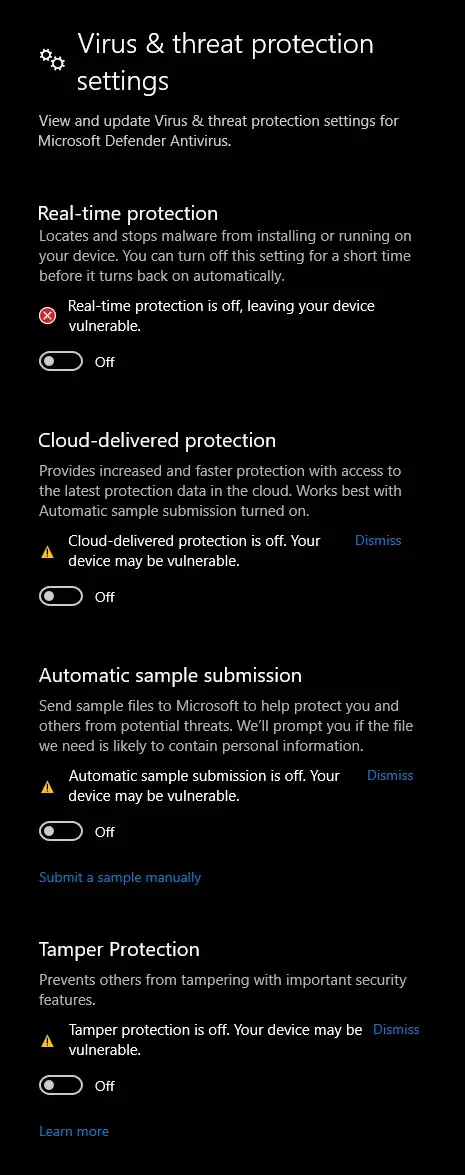
While Tamper Protection is on, the other methods in this article are nearly useless: Windows reverts the settings anyway. Disable it first.
Why the Old Methods No Longer Work
Group Policies
The method via gpedit.msc still exists in Windows Pro and Enterprise: Computer Configuration → Administrative Templates → Windows Components → Microsoft Defender Antivirus → "Turn off Microsoft Defender Antivirus". The problem is that with Tamper Protection on, Windows simply ignores this policy. With Tamper Protection off, the policy tends to reduce Defender's activity rather than fully disable it, which is no longer the clear-cut result it was a few years ago.
Registry Edits
The old trick with the DisableAntiSpyware parameter in HKEY_LOCAL_MACHINE\SOFTWARE\Policies\Microsoft\Windows Defender does not work at all in current versions of Windows. Microsoft removed support for this parameter: even if you create the key and set the right value, Defender simply ignores it and keeps running normally.
Stopping Services
Trying to stop, disable, or kill the Defender service process manually doesn't work either: Windows Security Center monitors the service's status and restarts it automatically, usually within a couple of minutes. On top of that, its startup type in the services manager is set to "Automatic (Protected)", which makes manual intervention even harder.
What Actually Works in 2026
There aren't many working options, but they work precisely because the system itself respects them, rather than being tricks that sneak past its protection.
- Turn off Tamper Protection in "Virus & threat protection", this is the first and mandatory step before anything else
- Temporarily turn off Real-time protection, but keep in mind Windows turns it back on by itself after a while, so this isn't a permanent fix
- Add the loader's folders, files, processes, and extensions to exclusions via "Manage settings" → "Exclusions", this works more reliably but isn't guaranteed for every piece of software
- Fully disable Defender with a third-party tool like DControl, which keeps protection off until the next reboot
How to Disable Defender with DControl
DControl, short for Defender Control, disables Defender completely and doesn't let Windows turn it back on by itself until the system reboots. Here's what to do:
- First turn off Tamper Protection, without this DControl may also fail to work completely
- Download the archive: Download DControl (.rar)
- Unpack the archive and run the file as administrator
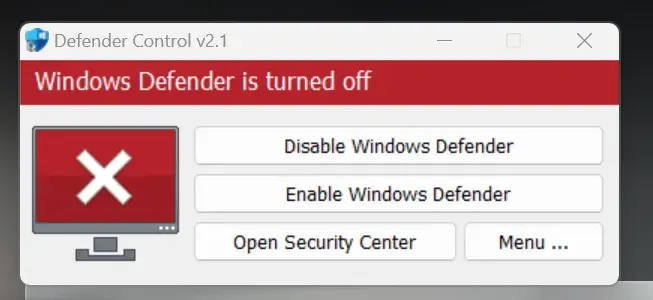
- Click the red "Disable Windows Defender" button
When the window's header turns red with the text "Windows Defender is turned off", protection is fully disabled and won't come back on its own until the next reboot.
How to Turn Defender Back On
Open DControl again and click "Enable Windows Defender", then in "Windows Security" turn the real-time protection, cloud-delivered protection, and Tamper Protection toggles back on. It's worth doing this once you're done playing and no longer need the loader for this session, especially if the computer isn't used for gaming only.
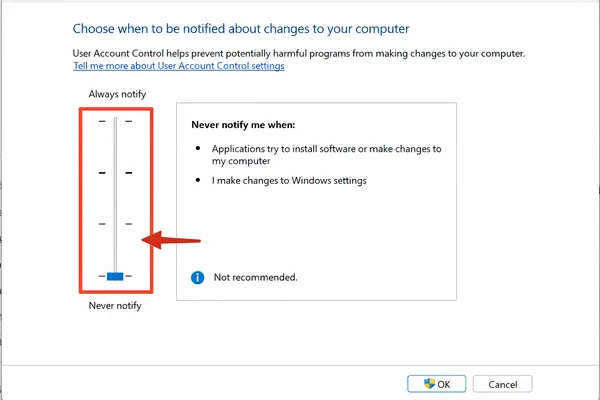
If the loader is still blocked after all these steps, the cause might be UAC or a third-party antivirus. See the full guide to disabling Windows protection for a cheat or the short guide to disabling UAC.
Frequently Asked Questions About Disabling Microsoft Defender
Why does Defender turn back on by itself?
While Tamper Protection is active, Windows automatically reverts changes to Defender's settings within one to two minutes after any manual attempt to disable it through the registry, services, or group policies.
Does the DisableAntiSpyware registry edit work in 2026?
No, Microsoft removed support for this parameter in current Windows builds. Defender completely ignores the key even if you create it manually in the registry.
Is it enough to just turn off Tamper Protection?
Turning off Tamper Protection on its own reduces Defender's activity but doesn't disable it completely. For a guaranteed result you also need a tool like DControl.
Is it safe to use DControl?
The tool has been around for a long time and is built specifically for managing Defender's state. As with any protection disabling, use it on a dedicated gaming computer and download it only from the direct link in this ForgeCheats guide.
Do you need to disable Defender before every gaming session?
No, if you leave protection disabled via DControl, the state persists until the next reboot. After the system restarts, Defender turns back on and you'll need to repeat the steps.