This guide is for you if you bought Jarvis for Oxide: Survival Island on Android. After payment, your key and the download link for both files, LuluBoxSuper 2.1.2 and the JARVIS OXIDE APK, are in your account. You won't need root or a computer.
What you need
- An Android phone or tablet, no root and no PC
- The original Oxide: Survival Island from Google Play (don't uninstall it)
- LuluBoxSuper version 2.1.2 exactly
- Internet for the first login with the key
- Your key from the order page or your account
Step 1. Install Oxide
If the game isn't on your phone yet, install Oxide: Survival Island from Google Play. If it's already installed, keep it, there's no need to reinstall.
Step 2. Install LuluBoxSuper and JARVIS OXIDE
Download both files from your account to the phone and install LuluBoxSuper first.
- If Android blocks the source, open Settings and allow installs from it. You can also do this by hand: Settings, Apps, Special access, Install unknown apps.
- If Google Play Protect shows a warning, tap More details, then Install anyway. Play Protect does this with every app installed outside Google Play.
- Install the JARVIS OXIDE APK the same way.
- Check the home screen: you should see the LuluBoxSuper and JARVIS OXIDE icons.
Step 3. Clone both apps into LuluBox
- Open LuluBoxSuper and grant the permissions it asks for.
- Tap the blue + (Add) button at the bottom of the list.
- Tick OXIDE and JARVIS OXIDE, tap CLONE and wait.
- Both apps appear in the list with a Local tag.
From now on, open them only from LuluBox, not from the home screen shortcuts.
Step 4. Enable SandBox for both
In LuluBox tap OXIDE to open the OXIDE (Local) page and turn on Enable SandBox. Go back, tap JARVIS OXIDE and turn on Enable SandBox there as well. It has to be on for both apps. Leave the other options alone.
Step 5. Launch the loader
- Fully close Oxide.
- On the JARVIS OXIDE (Local) page tap Play Now. The first launch takes about 20 seconds while it pulls the plugin data.
- The loader "JARVIS | OXIDE · Virtual loader" opens. Keep the "Open Oxide after install" box ticked and tap Install and connect.
- You'll see "Component prepared", "Installation complete" and "Oxide launch request sent", and then the game starts by itself.
Step 6. Enter your key
A JARVIS | OXIDE window with a key field appears over the game. Paste the whole key without spaces and tap Sign in (SIGN IN). The window is in Russian if Russian is your phone's system language. The first start is slower because the game prepares shaders. When it's done you get a green helmet icon, and tapping it opens the menu.
Step 7. Set up the menu
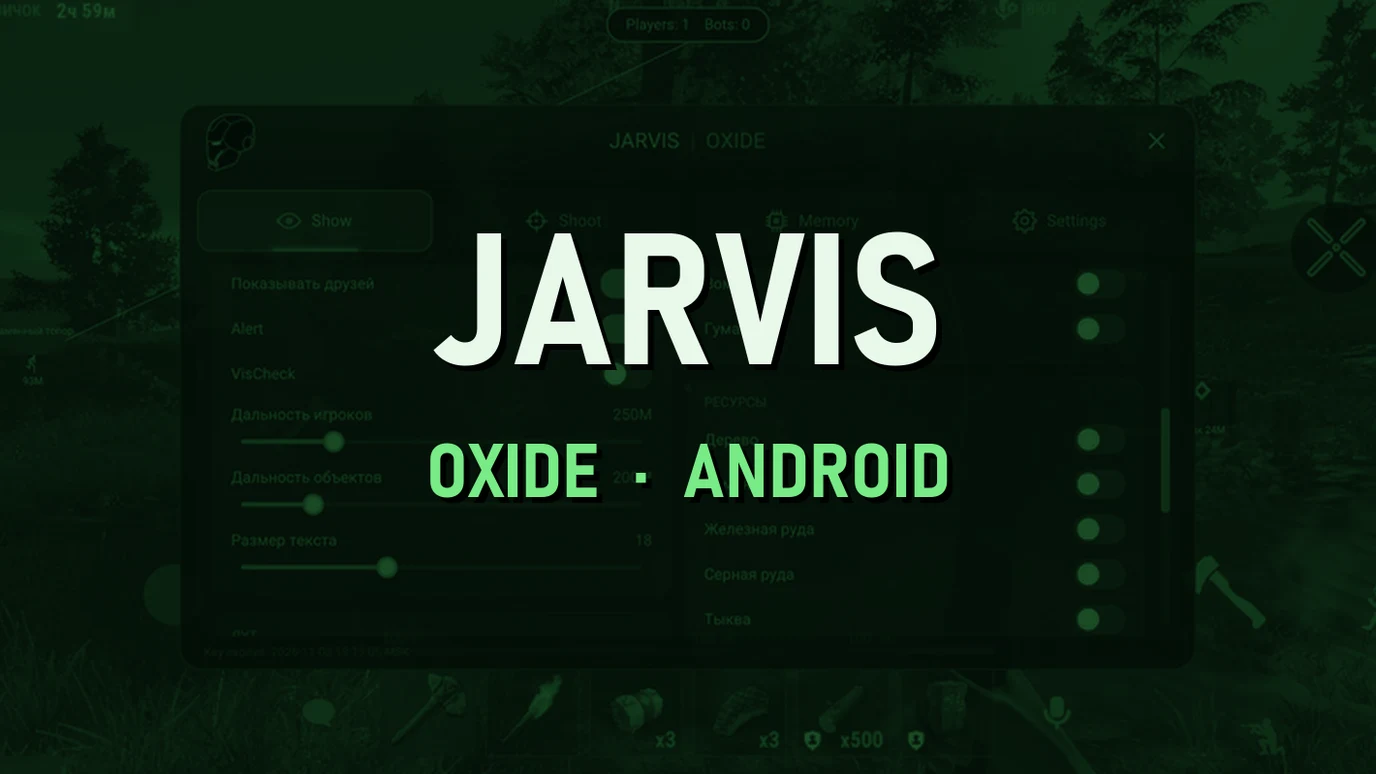
- Show: ESP for players, NPC, resources and loot
- Shoot: AutoAim and its floating button
- Memory: speed, reload, night, field of view and AutoFarm
- Settings: language, menu size, key expiry and connection status
Speed, fast reload and strong aim are noticeable to other players, so keep that in mind when you set them. And check on AutoFarm now and then instead of leaving it alone for hours.
Common problems
The menu didn't appear
Close LuluBox and Oxide completely and start again through the loader. Check that SandBox is on for both apps and that you opened the game from LuluBox.
The loader mentions SANDBOX MODE
SandBox isn't enabled on both apps. Go back to step 4.
The loader can't find the game
Both apps have to sit in the same LuluBoxSuper 2.1.2. Another LuluBox version won't work.
Play Protect blocks the install
Tap More details, then Install anyway.
The key isn't accepted
Copy it again in full, check your internet connection and contact support with your order number.
Support and community
If something still doesn't work, write to us in Telegram (300+ members) or Discord (2000+ members). You can check when your key expires at any time in the Settings section.